
Content Settings
Content Settings will cause the cover of titles to be blurred and have a letter on them.

Rating Indicators
There are three letters that may appear on the blurred covers:
- A for Adult
- M for Mature
- U for Unknown
Enabling Content Settings
To gain access to the Content Settings in Paperback, first you need to enable them on your device system settings.
iOS/iPadOS
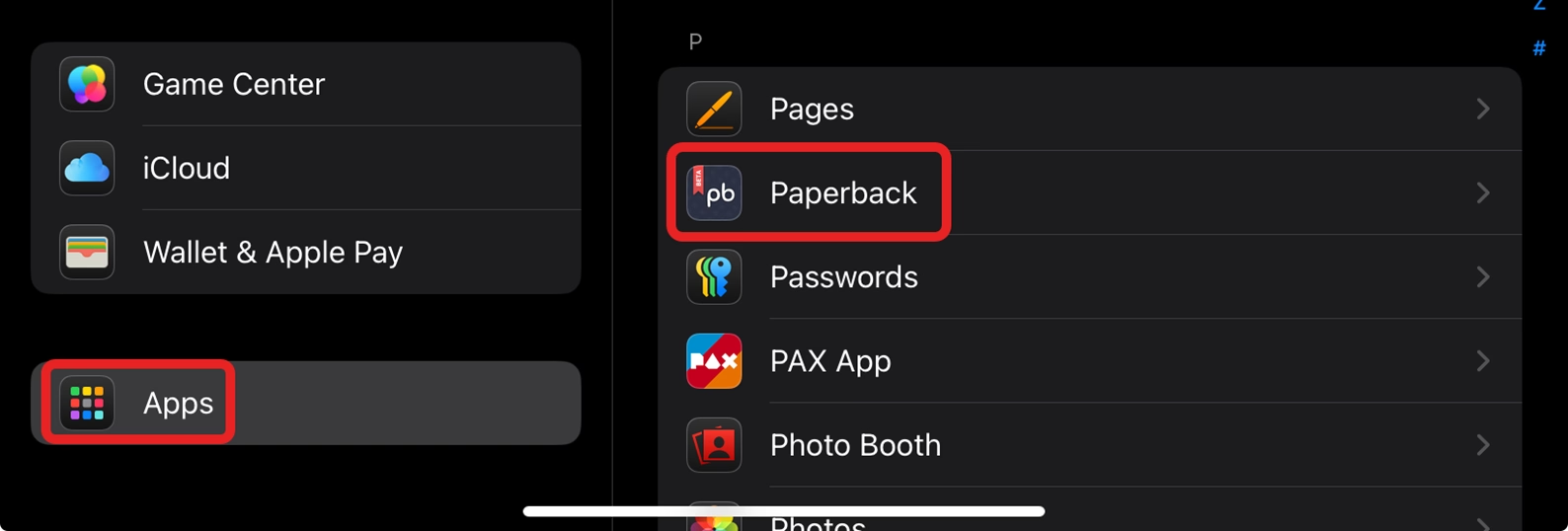
- Go to the Settings app.
- Tap Apps → Paperback.
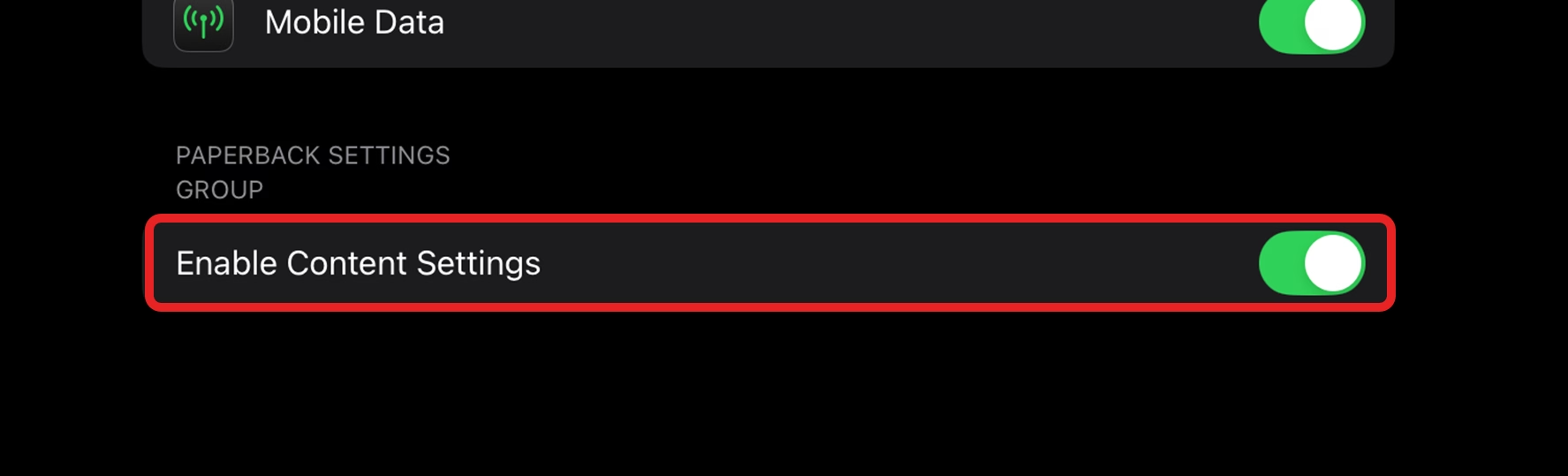
- Toggle on the Content Settings setting.
macOS
- In the menu bar at the top of the screen.
- Select Paperback → Settings → General.
- Enable the Content Settings setting.
App Configuration
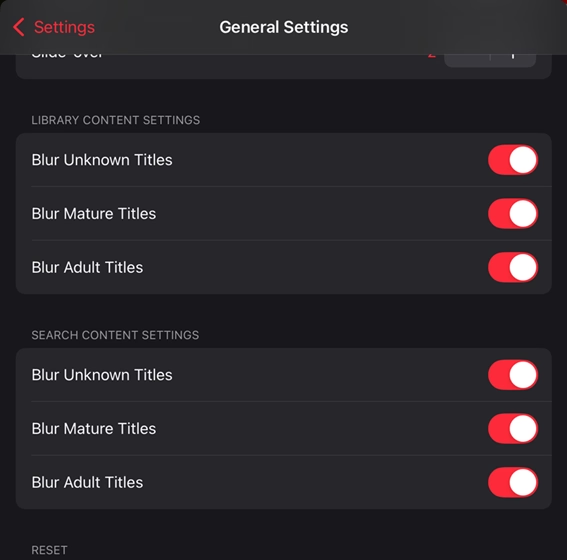
Once enabled on your device, two new sections for content settings will appear in the Paperback app.
- Tap the cog icon → General Settings.
- Locate the new sections:
- Library Content Settings
- Search Content Settings
These allow you to disable the blur on covers as well as to force hide titles instead.
TIP
Some extensions have their own Content Settings as well. See the Specific Extensions FAQ entries for more info.